




The solutions listed here allow easy and fast access to frequently visited websites. Minor changes in the browser or the Windows system are made to achieve an easier usage.
 |
Get direct access to your favourite websites in the browser 
For very often visited websites it is possible in certain web browsers to define one, or several websites, that should be opened when the browser starts.This will allow fast access to several often used websites.
In case you have more websites that you often visit, they can be defined in the browser's de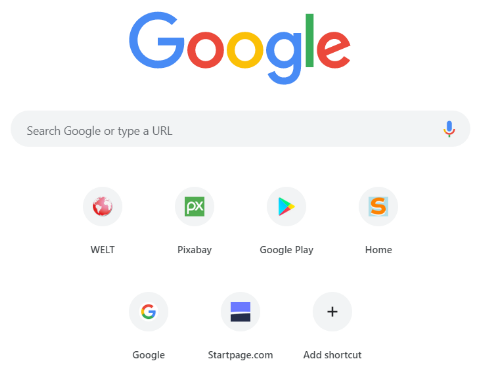 fault tab. Then direct links to previously visited websites are always shown when opening a new tab in the browser. There, just click on the page you want to open. In some browsers you can customize the links on the default tab.
Services are available on Windows and Linux computers and for certain browsers on Android smartphones or tablets.
| Back to start of text |
|
Use a page with your favourites to access many websites directly

When you want many often used websites to open with just one click, then use your own Internet Start page. By clicking on the name of a defined website in the ‘My favourite sites’ page, the site will be opened in a new tab in the browser.
The ‘My favourite sites’ page can be adjusted according to your needs.
Services are available on Windows and Linux computers.
| Back to start of text |
|
Customize your web browser for easier use 
The following minor changes will make your web browser easier to use:
● Increase the size of the displayed content on websites
This will enlarge shown content in the browser. On the other hand, the size can also be decreased. Enlargement or reduction is possible in certain steps.
● Change the browser language
Each user on a computer can use the browser in the preferred language.There are many languages selectable for the browser.
● Switch the default search engine used in the address bar 
Change the default search engine, perhaps to one that respects your privacy. In this case several search engines are selectable for the address bar in the browser.
● Easily execute specific functions using key combinations 
The shortcuts described here are performed in Chrome, Firefox and Opera browsers. It is quite possible, that some of these shortcuts may also work in other browsers. They allow you to quickly perform certain functions in a web browser.

An example of the Browser shortcut keys description list.
A list with more helpful key combinations and their descriptions is available here.
Services are available on Windows and Linux computers.
| Back to start of text |
|
Make Windows easier to use
With some little effort it is possible to make Windows easier to use, depending on your needs.The following conveniences are possible:
● Have direct access to an own button for shutting down or restarting the Windows computer 
For easy access, the buttons can be placed on the desktop or in the task bar at the bottom of the screen. 
● Automatic start of constantly used programs at login
Often used programs can be started automatically when signing in. These could be, for example:
- Calendar application

- Web browser
- Online video call program
- Picture or text editor
- or other often used programs
● Easier access to useful Windows features 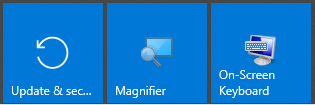
Launch certain Windows programs immediately. Select the program directly on the desktop, in the start menu, or from the task bar at the bottom of the screen.
Possible Windows programs are:
- Windows Update
- On-Screen keyboard
- Magnifier (Lens)
- Calculator
- WordPad
- Windows Explorer
- Video editor
- 3D Paint
● Easy access to locations where the private files are typically stored 

Conveniently find your stored documents, pictures, music, and videos directly from the desktop
or in the start menu. 

● Increase text size
Make only the Windows text bigger. 
Additionally, it is possible to increase the size of apps and text.
● Direct access to Windows Settings 
Have a separate button for accessing the Windows Settings on the desktop.
In Windows 10, the Settings can also be in the Start menu and in the taskbar.
For administrating your Windows computer, you can get a list with all Windows settings.  Therefore, a corresponding button is placed on the desktop.
After clicking on the icon, a list of all Settings functions is shown. 
Most of the functions request administrator privileges.
● Key shortcuts for Windows functions
For faster execution of actions and functions in Windows, you can use special key combinations. Here is an example for showing the desktop.
A list of more helpful Windows key combinations and their description is available here.
Check the provided services on Windows computers.
| Back to start of text |
|